Crew RestBetaIn-flight rest planner · Configured for Air NZ

Time in port

Crew rest order · enter names

Send feedback or ideas

Install Crew Rest

Add it to your home screen first. It then opens like an app, works with no internet in flight, and keeps your plans.

  1. Tap the Share button at the bottom of Safari. If you can't see it, tap ⋯ first.
  2. Scroll down and tap Add to Home Screen , then Add.
  3. Open Crew Rest from your home screen.

Plans saved in the browser don't carry over to the installed app, so install it before you make or receive a plan.

Crew Rest Beta

Configured for Air NZ

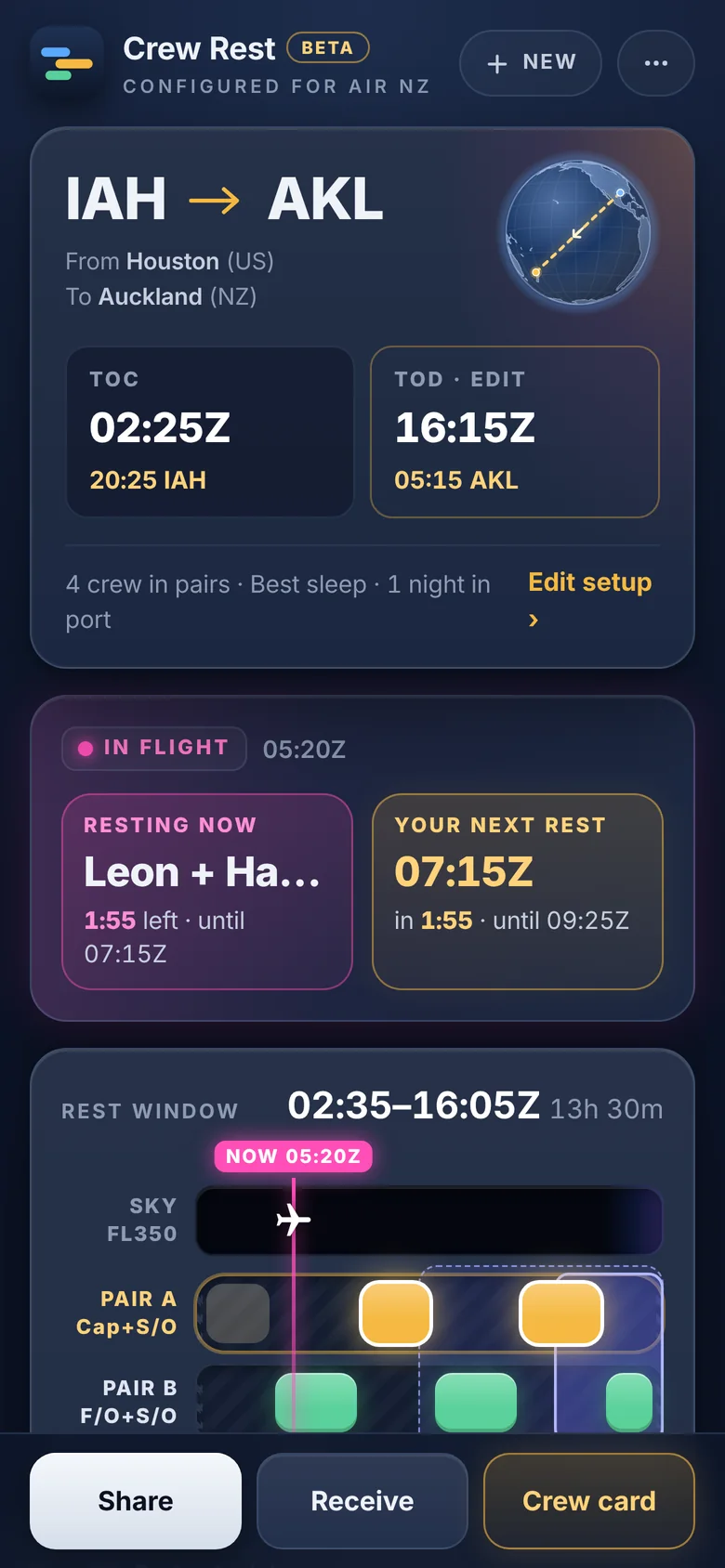
Plan in-flight rest, share it with the crew, and see your next rest at a glance. Works with no internet.

  1. Enter the flightFrom, To, TOC and TOD (UTC), and the crew.
  2. Tap Make planIt works out a fair plan. Then pick a style: Even, Fair night or Best sleep. Tap How styles work under the plan to compare them.
  3. Tap ShareThe crew scan the QR code.

Crew: tap Receive, scan the planner's QR and pick your name.

Beta. Crew Rest is still being tested. Check every plan against your company rules and use your own judgement. Found a problem or have an idea? Send feedback. It's in the ••• menu too. The app counts anonymous usage to help improve it.

© 2026 Crew Rest. All rights reserved.

Crew Rest Beta

Configured for Air NZ

Plans in-flight rest around everyone's body clock, then shares it with the crew by QR code. Works with no internet.

Version

Beta. Crew Rest is still being tested. Check every plan against your company rules and use your own judgement. Found a problem or have an idea? Send feedback.

The app counts anonymous usage to help improve it. Nothing personal is collected.

© 2026 Crew Rest. All rights reserved.

Help

Getting started
  • Planner: enter From, To, TOC, TOD and the crew, then tap Make plan.
  • Crew rest in the order they're listed, landing pilot included. Picking the landing pilot puts them in the usual spot (the middle with 3 crew, their pair first with 4). Drag a pilot by the ⋮⋮ handle to change it. With 4 crew the top two are Pair A and rest first; drag to change the pairs. The Captain and F/O always rest in different pairs.
  • Pick a plan style if you want a different one, then tap Share. The crew scan the QR code.
  • Crew: tap Receive, scan the planner's QR and pick your name.
Sharing and receiving
  • Sharing works phone to phone and phone to iPad by QR code, with no internet.
  • Copy as text gives the rest times and TOD local, for a message or AirDrop when you have a connection.
  • If the plan changes, scan the QR on the device that has the new one. Your name stays the same and you'll see what moved.
Late at TOC, or the times change
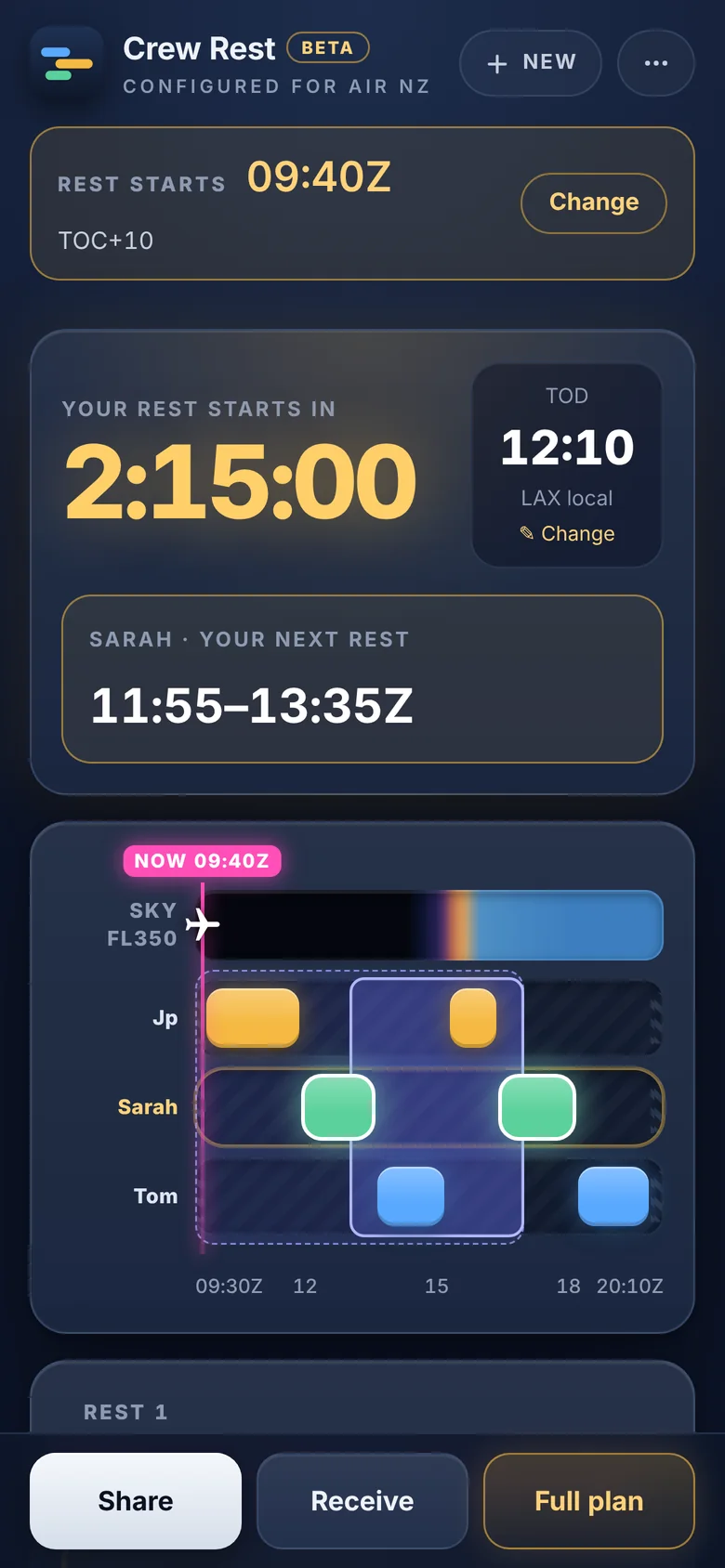
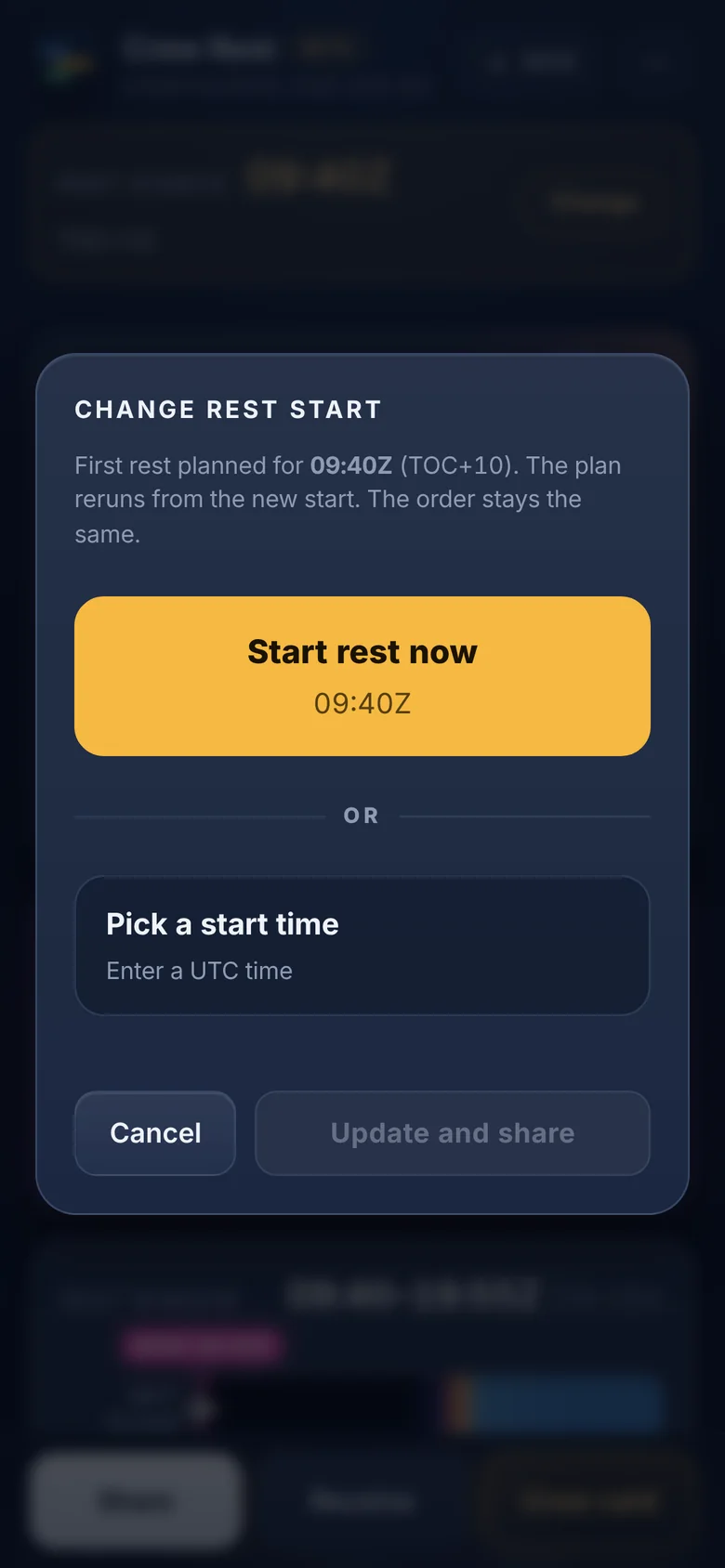
  • Rest starts late: tap Change next to Rest starts, then Start rest now or Pick a start time. The plan reruns from the new start, and the order stays the same.
  • TOD changes: tap TOD on the plan and enter the new time. The change is shared out in 5 minute steps so everyone's total rest stays as even as possible. A rest in progress gains time only when everyone does. It is only cut short when that keeps everyone's total rest even, with at least 15 min notice and never to under 45 min.
  • After a change, share again so the crew have the new plan.
How rest times are worked out
  • Rest starts at least 5 minutes after TOC, and ends at least 10 minutes before TOD.
  • Every rest starts and ends on a 5 minute mark, like 07:20, not 07:17. So the start rounds later and the end rounds earlier.
  • Rests are made of whole 5 minute blocks. Any minutes that don't divide evenly between the crew are shared out after TOC and before TOD, keeping those two gaps as even as possible.
  • Everyone always gets the same total rest.

That's why the first rest often starts a little after TOC + 5. For example, TOC 07:12: the earliest start is 07:17, which rounds to 07:20. If there are 10 minutes left over, 5 go after TOC and 5 before TOD, so the first rest starts at 07:25. If rest starts late, with Start rest now or Pick a start time, the leftover minutes go before TOD instead.

Plan styles

Even, Fair night or Best sleep (the default). Everyone gets the same total rest whatever the style: it only changes rest lengths and who gets the best sleeping hours. Tap How styles work under a plan to compare them on your own flight.

Manual plans

Tap Plan type on the setup screen and pick Manual to build the rests yourself, for example 45 min, 1h25, 1h30, in 5 minute steps. Hold + or − to go faster. Everyone gets the same rest in each round. You can also set when rest starts after TOC, ends before TOD, and the most time up front. A manual plan is marked Manual for the whole crew. Pick Optimised to go back to the standard rules.

Body clock and sleep

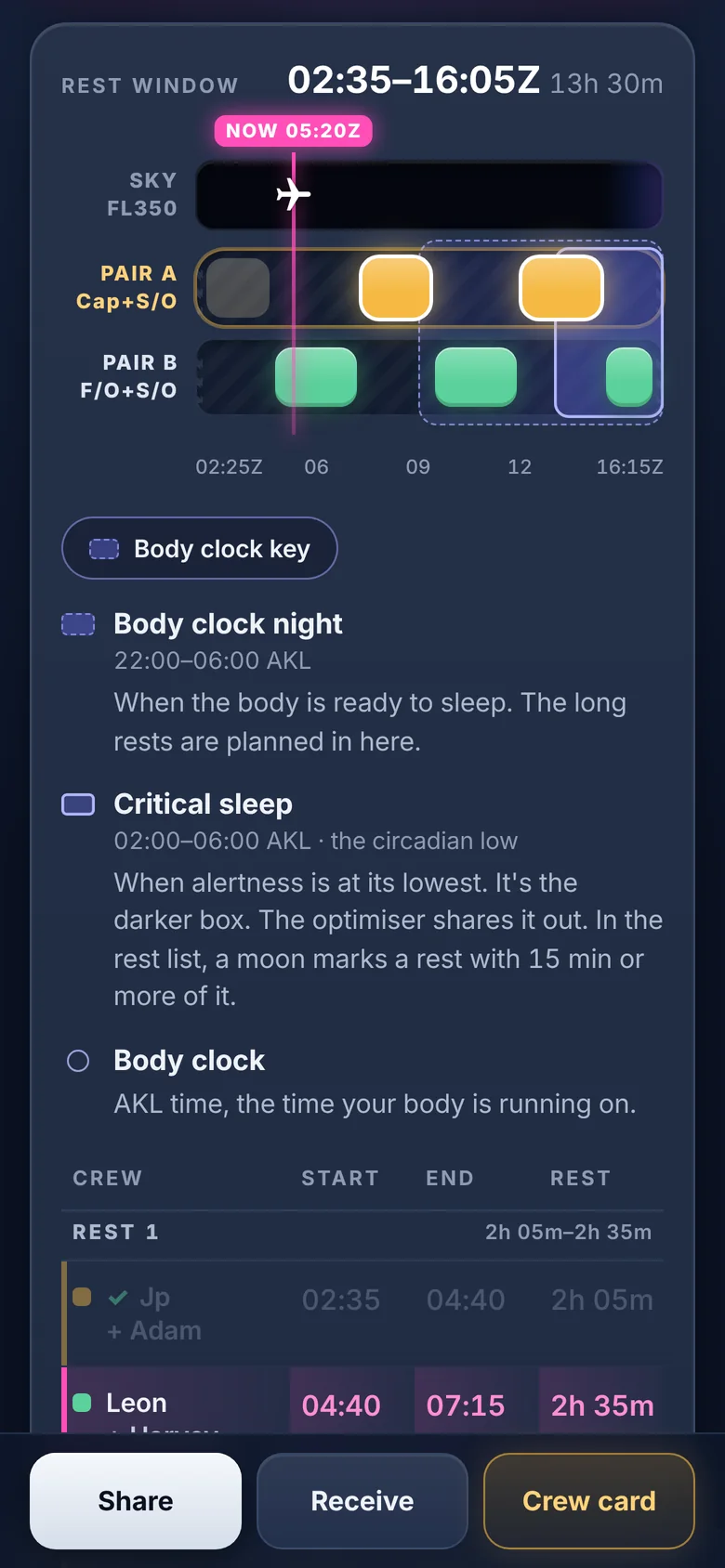
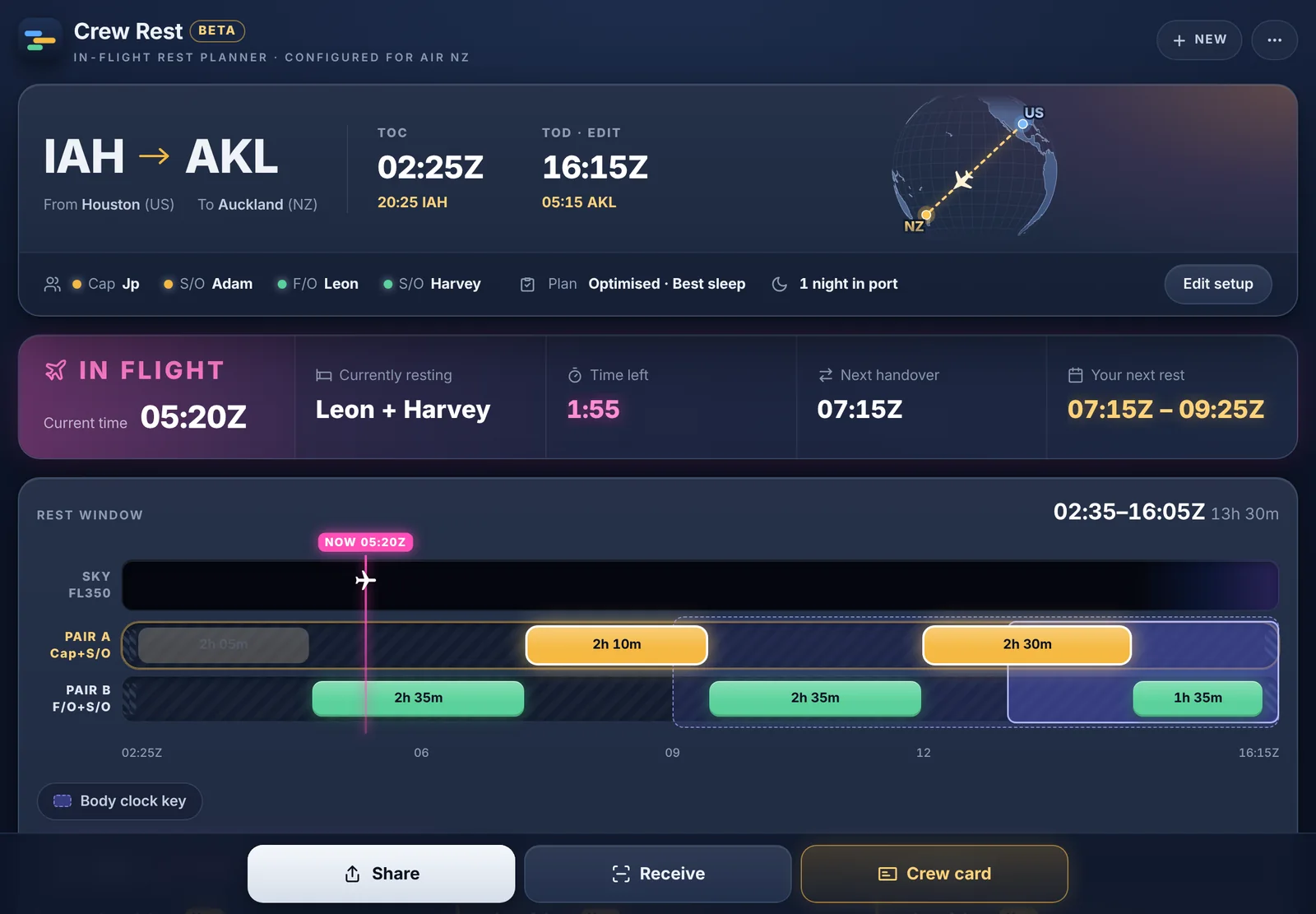
The plan shows where each rest falls on your body clock: your body clock night, and the critical sleep window, the circadian low, when sleep comes easiest and alertness is at its lowest. Best sleep shares that time out fairly, so no one pilot gets all the good sleep. Your body clock is NZ time, and moves towards local time after a few nights in port. Tap Body clock key under the plan for the details.

Crew card, countdown and dim mode
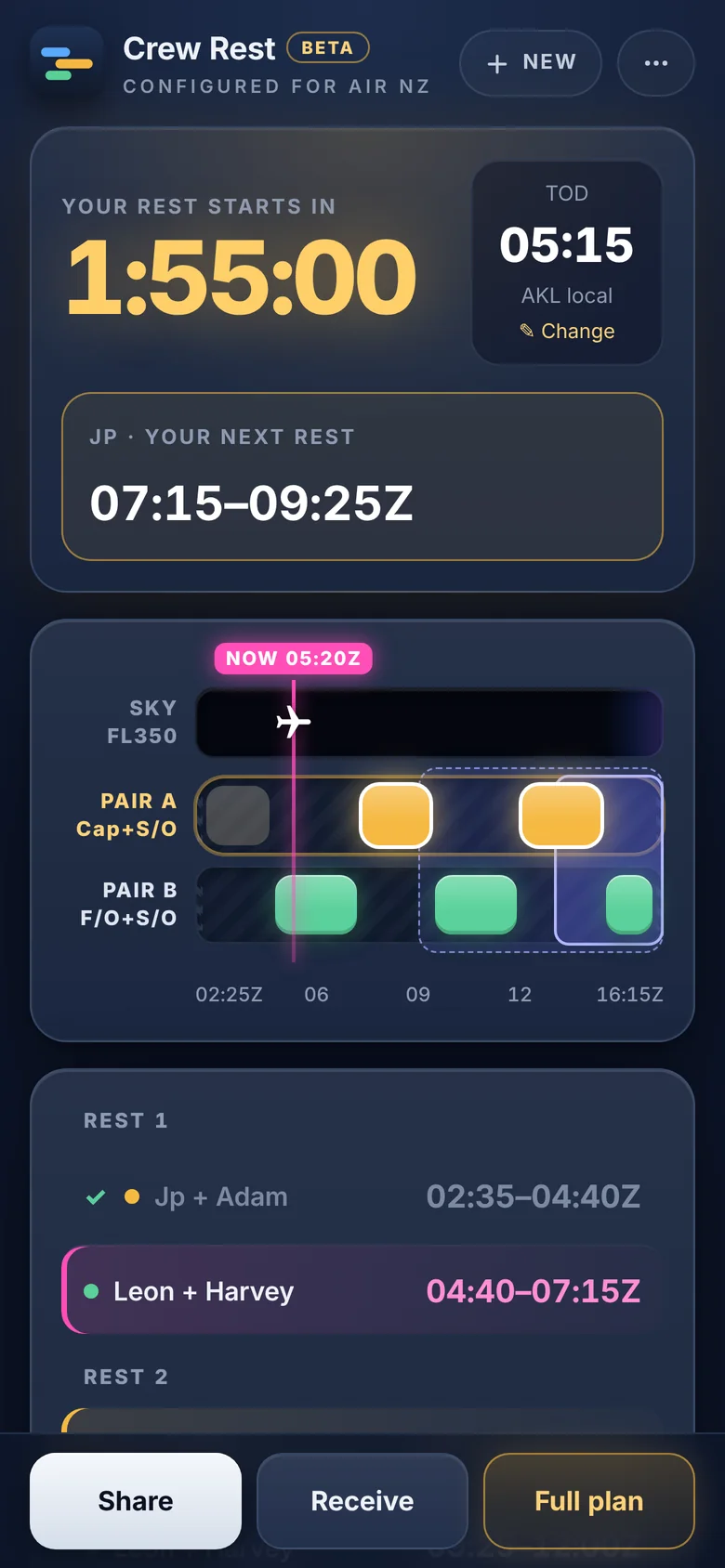
  • Crew card: your next rest at a glance, with a countdown.
  • Countdown, full screen: a big timer for the flight deck.
  • Dim mode: darker and calmer for the flight deck at night, with pilot colours kept.

All three are in the ••• menu.

After the flight

A plan stays until 3 hours after TOD. The next time you open the app after that, it starts a new session ready for the next flight. Restore last plan brings the old one back if you need it.

Installing and offline

Add Crew Rest to your home screen and it works like an app, with no internet needed on board. It updates itself when you open it with a connection.

Something not covered here? Send feedback.

Settings

Plan type

Optimised uses the standard rules for every plan.

Times

The date is set for you when TOC and TOD are entered: the next time that flight happens. Set it here to plan a later flight. Rest starts and ends on 5 minute marks.

Body clock

Time at this port is asked on the setup screen only when you leave from an outstation.

Optimiser
Short rest, min

Only used when plan type is Optimised. Rests each is per person, or per pair with 4 crew. Auto lets the optimiser choose from the rules. A set number still shares out prime and critical sleep and keeps time up front under the limit, but uses no short first rest or end-of-flight breaks. A day flight is one where no rest falls in sleep time on the body clock. Rest is then just time out of the flight deck: no short first rests, one rest each when that's no longer than the limit above (3h by default), otherwise two even rests each. Nap and sleep avoids rests of 50 to 85 minutes, which tend to wake you from deep sleep: when rests are split, each person gets a short nap (up to 45 min) and a longer sleep (90 min or more). Rest order As listed keeps your crew order (top of the list rests first) and only works out the lengths and short rests. Blank boxes use defaults for the crew size: 1h30 to 2h00 rests and 3h30 up front for 3 crew, 1h30 to 2h30 rests and 2h30 up front for pairs. Up to 30 min over the up-front limit is allowed with a warning.

Feedback

Found a problem, or have an idea to make it better? Send it to John Bevin. It adds the app version and device type for you.

Send feedback or ideas

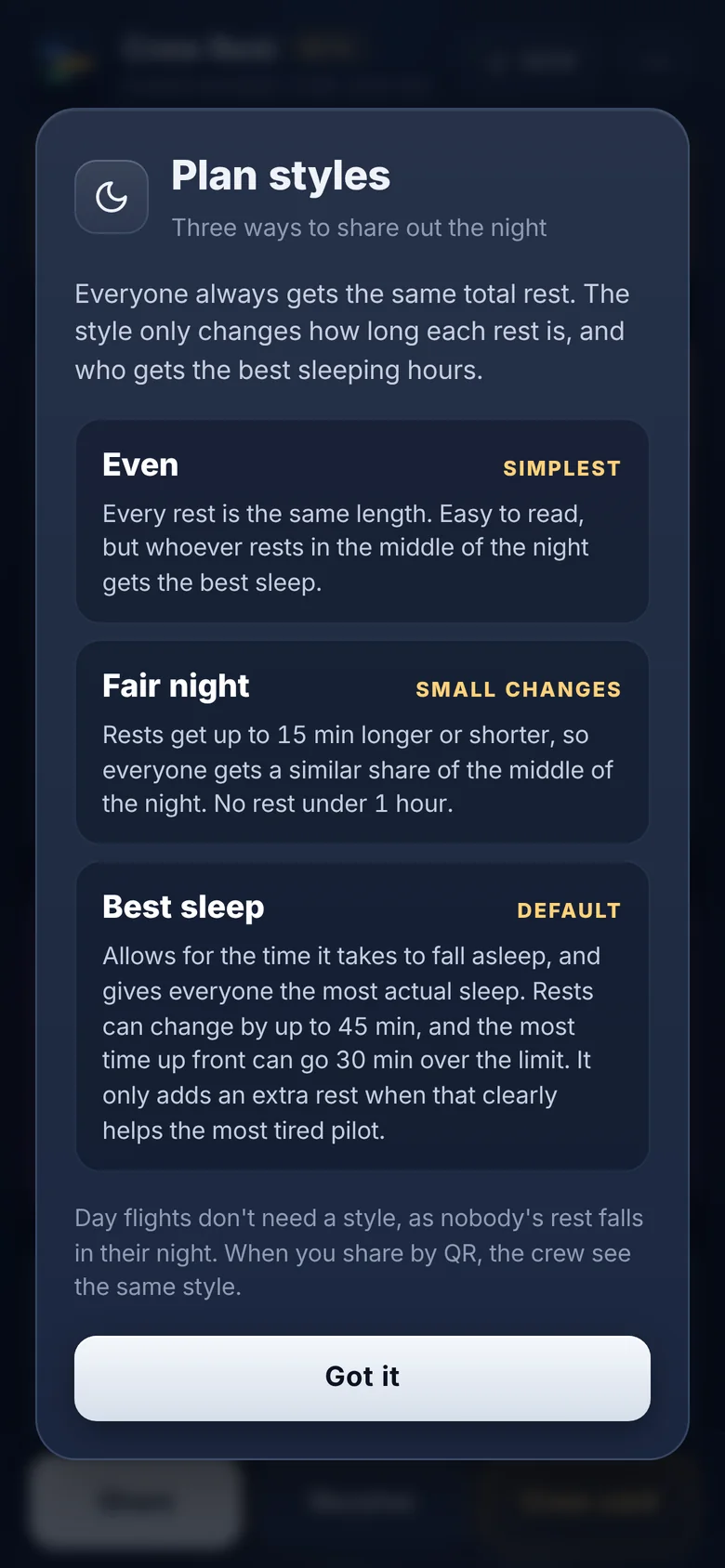
Plan styles

Three ways to share out the night

Everyone always gets the same total rest. The style only changes how long each rest is, and who gets the best sleeping hours.

Day flights don't need a style, as nobody's rest falls in their night. When you share by QR, the crew see the same style.

Have this plan in flight

You're using Crew Rest in a browser tab. It may not open with no internet, and the browser can clear your plan.

Add Crew Rest to your home screen and open it. Your plan doesn't move across by itself, so tap Receive and scan the plan again there.

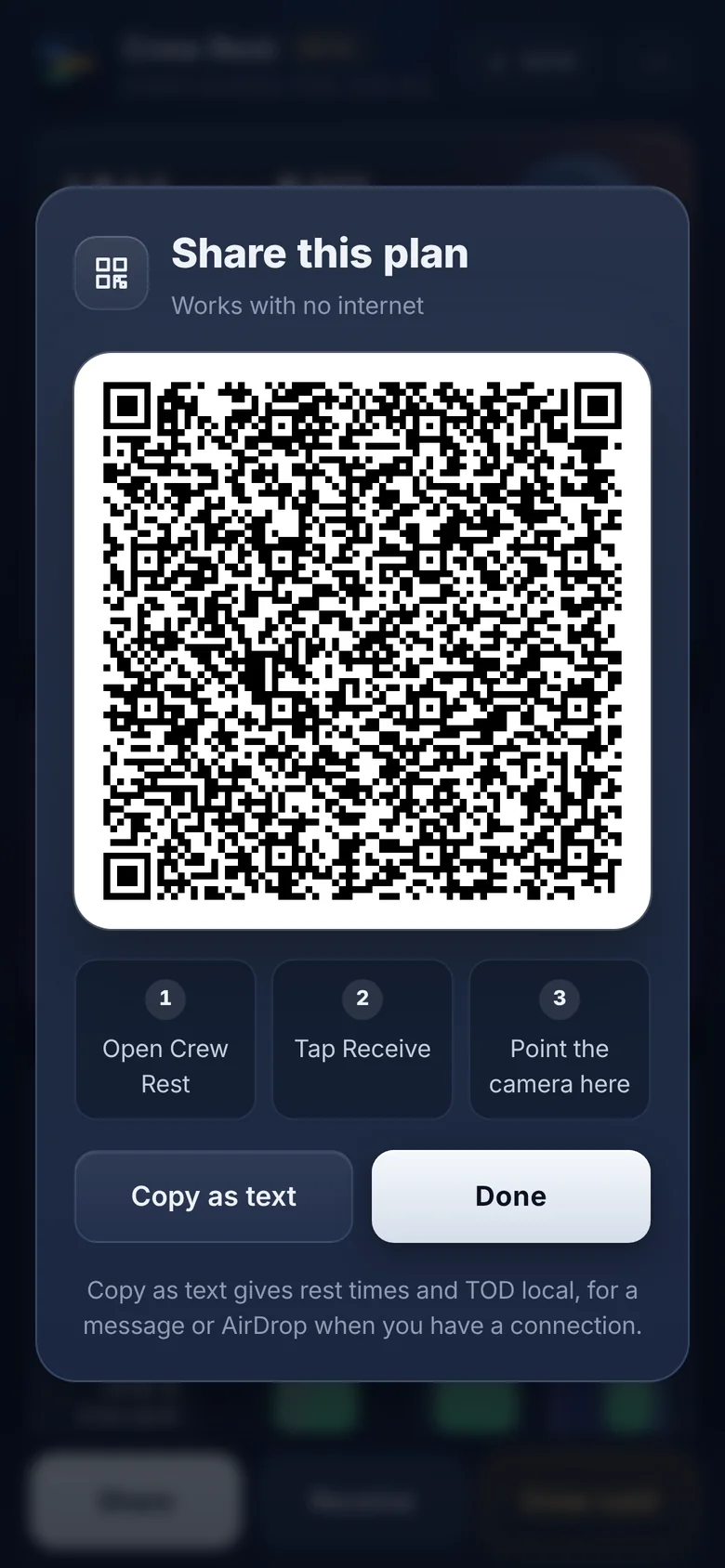
Share this plan

Works with no internet

QR code of the rest plan
  1. 1Open Crew Rest
  2. 2Tap Receive
  3. 3Point the camera here

Ask your crew to add Crew Rest to their home screen, so the plan is there in flight.

Copy as text gives rest times and TOD local, for a message or AirDrop when you have a connection.

Receive a plan

Scan the QR on the planner's screen

Change TOD

The change is shared out in 5 minute steps so everyone's total rest stays as even as possible. A rest in progress gains time only when everyone does. It is only cut short when that keeps everyone's total rest even, with at least 15 min notice and never to under 45 min.

Change rest start

Pick a start timeEnter a UTC time

Start a new plan?

This clears the current plan and crew names. You can bring it back with Restore last plan.

Who are you?

Pick your name to see your own rest.